



Registering Your Computer and Browser
Why do we “register the browser”?
Browser registration is an important security feature of Online Banking. It allows you to control which computers are allowed to access the website. For instance, if you are on the computer that you intend to use for internet banking on a regular basis, you are able to identify that machine as such. If you have never used a computer or browser on the site before, you will be asked to “register”. This is done by sending a secure access code to you. The code is sent to something that is yours, like your email, your cell phone, or even your home phone. The idea is that if a fraudster were to get your password and try to log in, that person is not likely to also have access to your phone, or your email, or your cell phone. Browser registration also allows you to work safely from any computer without having to register that computer. For example if you need to do some banking at a friends house, you could register their computer “for one time use”. This means you can send the access code to your mobile device or email, and log into the site without attatching that persons computer to your online banking. This keeps your website experience secure as you travel. When you register your personal computer for Online Banking, a file called a “cookie” is saved to that computer. When you sign in, the website checks to see if your computer has the proper cookie. It is imprtant that you configure your browser (Internet Explorer, Chrome, Firefox, Safari, etc) to accept cookes and not delete them when you close your browser, because the website will not recognize you without the cookie. Cookie handling is managed in your browser settings and the location varies depending on which browser you are using. Consult your browser help menu, searching for “cookie”.
How do we “register the browser”?
If you want to register a computer for regular use with Online Banking you will need to make sure that your browser settings allow you to save the “cookie” file to your computer, and make sure that the browser doesn’t “delete all cookies on exit”. Having done that, the registration process is a matter of a few simple steps. Go to www.fnbolney.com.
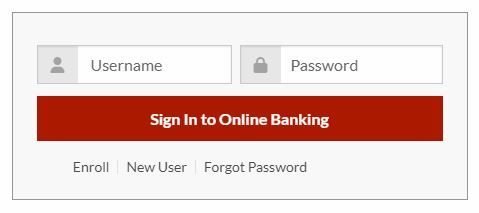
Sign in:
Enter your Online ID, and password into the appropriate boxes and then click the button labeled “Sign in”.
Begin Registration
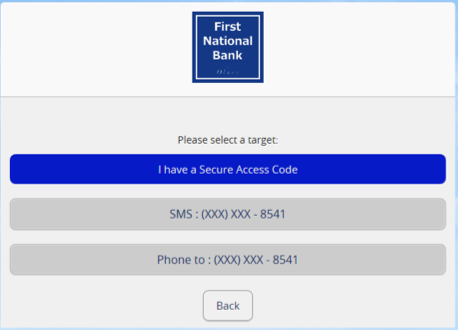
You will be taken to a page where “You are Required to Register this Computer”. Here you choose where you would like us to deliver your Secure Access Code which you choose from a list of contact preferences that you have previously provided to us. See photo below. The user in that photo has shared their contact info with the bank. They can choose to send the code using a land line phone call, a text message to a cell phone, a phone call to that cell phone, or by sending an email to their email address. For this example we will choose to send an email message. (note: your options will be different depending on your preferences. Actual phone numbers were removed. The site will only display the last four digits of phone numbers and the last four characters of an email address.)
Receive and enter your Secure Access Code
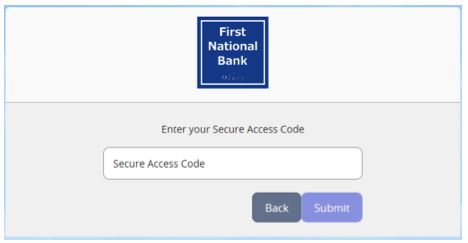
Once you have received the code from your chosen method, input the code in the Secure Access Code box. Once the code is entered, click the submit button. Access codes are only valid for 15 minutes so you will want to collect your code and then return to the website.
Register the computer for use with Online Banking
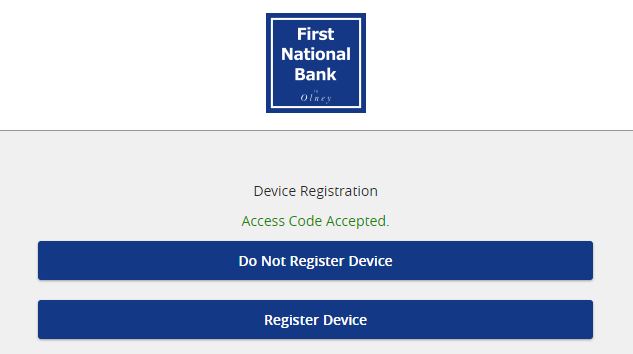
When you submit your code, you will see the next and final page in this process. The page asks you to “Activate Browser”. You click the circle next to the option of your choice. If you are on your personal computer you would choose “Activate browser for later use”. You would take the other option if you were on a strange computer such as at a friend's house or in a hotel lobby.
Final Step
The final step is to click the button labeled “Submit”.
The next page you see will be your Account Overview page in Online Banking. You have now registered the computer and browser using a Secure Access Code.